How to Create an Email Template in Outlook
Learning how to create an email template in Outlook saves you from retyping the same reply twenty times a week. The catch is that Outlook has four different versions, and each one hides that feature somewhere else. Some paths need a .oft file, others use a template pane, and a couple rely on Quick Parts.
Pick the wrong method and you’ll waste an hour hunting for a menu that isn’t there.
Microsoft’s own support documentation confirms that template creation works differently across classic desktop, new Outlook, Outlook on the web, and Outlook for Mac. Free accounts also lose access to some features that paid Microsoft 365 subscriptions keep. As of 2026, My Templates is the standard method for the web and new Outlook clients, while classic desktop still runs on the older .oft file system.
So the very first thing to sort out is which version you’re actually staring at.
The Real Question: Which Outlook Are You Actually Using?
The answer changes everything. If you’re on classic desktop, skip to Quick Parts. If you’re on the web or new Outlook, My Templates is your only option.
If you’re on Mac, signatures often do the job better than a proper template.
Here’s a quick way to tell which one you have open. Classic desktop shows a ribbon with File, Home, Send/Receive, and Folder tabs. New Outlook has a simplified ribbon with a toggle in the top right labeled “New Outlook.” Outlook on the web runs entirely in a browser tab.
Outlook for Mac looks similar to classic but swaps a few menus.
Once you know your version, the rest is a straight path. The table below maps each version to the template method that actually works there.
| Outlook Version | Template Method | Requires Paid Account? |
|---|---|---|
| Classic desktop (Windows) | .oft file or Quick Parts | No |
| New Outlook for Windows | My Templates add-in | Yes |
| Outlook on the web | My Templates add-in | Yes |
| Outlook for Mac | Signatures (or My Templates via web) | Yes |
Worth knowing: Microsoft has been slowly retiring classic Outlook for Windows in favor of the new client. If your IT team hasn’t migrated you yet, Quick Parts and .oft files still work perfectly. Once you switch, those vanish.
Plan accordingly.
The Four Ways to Make a Template in Outlook, and Which One Fits You
There isn’t one method. There are four, and each one is built for a different setup. Choose based on your version, whether you pay for Microsoft 365, and how often you’ll reuse the template.
If you’re on classic desktop and want the most control, .oft files win. They store full formatting, attachments, and subject lines exactly as you built them.
If you’re on classic desktop and want speed over polish, Quick Parts is faster. It saves a highlighted chunk of text you can drop into any email with two clicks.
If you’re on the web, new Outlook, or Mac, My Templates is the standard. It stores templates in the cloud and syncs across devices.
If you want a template that auto-inserts every time you compose, use a signature. It’s not technically a template, but it behaves like one for repetitive intros and disclaimers.
Save as .oft (Classic Desktop Windows)
This is the original Outlook template format. A .oft file is a saved email with formatting, subject line, and attachments baked in. Microsoft documents this as the “Outlook Template (*.oft)” option under File > Save As.
Here’s the full workflow:
- Open Outlook and click New Email.
- Write the body exactly how you want the template to appear.
- Add a subject line and any attachments you want included.
- Click File > Save As.
- In the “Save as type” dropdown, choose Outlook Template (*.oft).
- Name the file and save it. Outlook defaults to the templates folder.
To use it later:
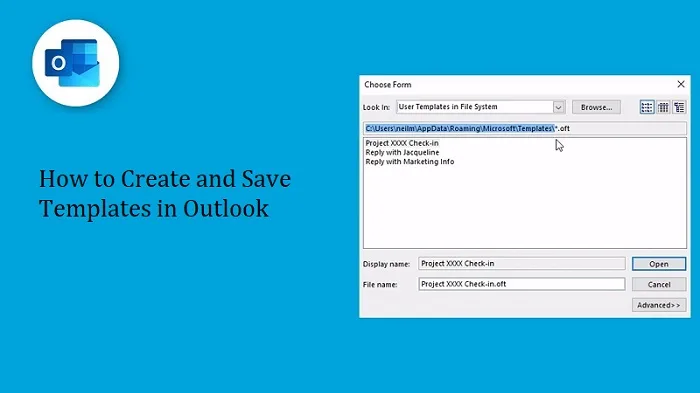
- Click New Items > More Items > Choose Form.
- In the “Look in” dropdown, pick User Templates in File System.
- Select your template and click Open.
The trap most people hit: double-clicking a .oft file on your desktop does nothing useful. It opens Outlook but doesn’t always load the template correctly. Always open .oft files through the Choose Form menu.
Image source: Web (Bing) / rooms.blackcountrytours.co.uk (Web image (fair-use with source credit))
Quick Parts (Classic Desktop, the Hidden Shortcut)
Quick Parts is Outlook’s built-in snippet library. You highlight text, save it to the Quick Parts Gallery, and reuse it inside any email.
It’s the fastest method if you only need blocks of text. No file management, no Save As dialog. Just highlight, save, insert.
The catch: Quick Parts doesn’t store subject lines or attachments. It only saves content you can type or paste. For full email layouts, stick with .oft.
My Templates Add-In (Web, New Outlook, and Mac)
My Templates is Microsoft’s official replacement for Quick Parts in the newer clients. It lives inside the compose window under Insert > My Templates.
To save a new template:
- Compose the email you want to save.
- Click Insert > My Templates.
- Click “Save current message as a template” or the plus (+) icon.
- Name it, add optional categories, and hit Save.
To use one later, open a new email, click Insert > My Templates, and select the template from the pane.
Mac users: My Templates is available through the web version of Outlook or the mobile app. The native Mac desktop app still relies on signatures for most template-style work.
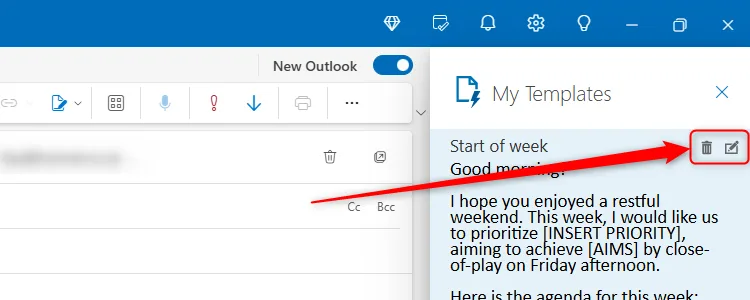
Image source: Bing (Web (fair-use with source credit))
Signatures That Act Like Templates (Every Version)
A signature isn’t a template in the strict sense. But for repetitive content like intros, disclaimers, or standard replies, it does the same job.
Microsoft’s signature tool lets you create multiple signatures and set a default for new messages versus replies. Build a “template” signature with your standard content, then switch between them depending on the email.
It works on every Outlook version, which makes it the one universal fallback when nothing else is available.
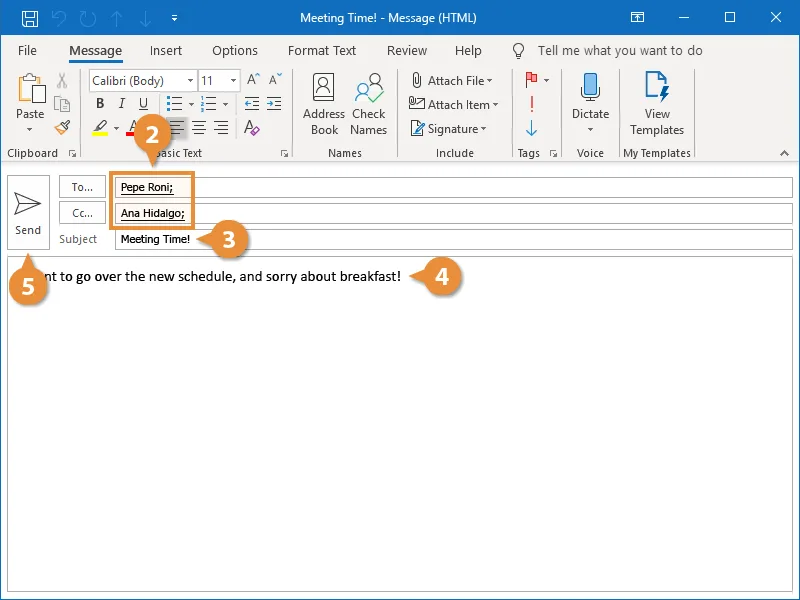
Image source: Web (Bing) / customguide.com (Web image (fair-use with source credit))
Step-by-Step: Building Your First Template in Each Version
Pick your version below and follow the steps. Each one takes under five minutes. The trick is to prepare the content first so you’re not rewriting halfway through.
Before you start, sketch out:
- The subject line pattern you’ll reuse
- The greeting and closing lines
- Any placeholders like [Client Name] or [Order Number]
- Attachments you want included every time
Run through that list once, and the actual Outlook steps take seconds.
For classic desktop, follow the .oft workflow above. For web and new Outlook, use the My Templates steps. For Mac, build a signature with your standard text and assign it as the default for new messages.
If you want the template to sync across devices, only My Templates will do it. .oft files live on one machine unless you manually copy them. Plan around that if you switch between a laptop and a phone.
Where Templates Live, Why They Vanish, and How to Keep Them
Template files don’t live in a friendly folder you’ll stumble on. They hide in AppData and library paths that most people never open. Knowing the location saves you when something breaks.
On Windows, .oft files default to %APPDATA%\Microsoft\Templates. Paste that into File Explorer’s address bar and you’ll see every template you’ve saved. Back that folder up and you’ll never lose them, even after a profile reset.
On Mac, Microsoft stores user content under ~/Library/Group Containers/UBF8T346G9.Office/User Content/Templates. Same idea, different path.
My Templates lives in the cloud. It syncs through your Microsoft 365 or Outlook.com account, so you don’t manage files. The trade-off: lose account access and you lose templates.
Common reasons templates disappear:
- You’ve switched from classic to new Outlook and Quick Parts no longer appears
- Your IT policy blocks Quick Parts or My Templates
- You’re signed into a shared mailbox instead of your personal account
- A Windows profile reset cleared the AppData folder
If My Templates suddenly stops appearing, check that you’re signed in with the account that owns it. Shared mailboxes don’t carry personal templates.
It’s also worth backing up the %APPDATA%\Microsoft\Templates folder to OneDrive or an external drive. That single folder holds every .oft file you’ve built. If Windows ever throws a profile error, you’ll thank yourself later.
Group Policy in corporate environments can also disable Quick Parts entirely. If that’s your situation, the only workaround is a signature or a shared template library deployed by your admin through Microsoft 365.
Mistakes That Cost People Hours (and How to Skip Them)
These are the errors that come up again and again in support threads and user forums. Each one is preventable with a five-second check.
Saving a template as a regular .msg file instead of .oft. A .msg file opens as a received email, not a template you can edit and reuse. Always pick Outlook Template (*.oft) from the dropdown.
Forgetting that Quick Parts doesn’t store attachments. If your template needs a PDF or image attached, Quick Parts won’t carry it. Use .oft or My Templates for that.
Letting the signature auto-insert on top of your template content. Outlook adds your default signature when you compose. If your template already includes a signature, you’ll end up with two.
Turn off the default for that message or set the signature to none before saving the template.
Reusing a template without updating placeholders. It’s easy to send “[Client Name]” still in the greeting. Build the habit of scanning for brackets before hitting send.
Assuming templates sync across devices. .oft files stay put unless you move them. My Templates syncs. Pick based on how you work.
Testing the template only once. A template that looks fine in classic Outlook can break in the web client. Send a test to yourself from each device you actually use.
Ignoring Microsoft’s shift to the new Outlook. Once your account migrates, Quick Parts disappears. If your workflow depends on it, migrate your content to My Templates now, before the switch happens on Microsoft’s schedule.
Now that you know what to avoid, the next step is picking the right tool for your situation. That’s where the comparison below comes in.
Now comes the part where most people pick the wrong tool and blame Outlook for it.
Templates vs. Signatures vs. Mail Merge: Picking the Right Tool
These three get confused constantly. They’re not the same thing, and using one where another belongs wastes time.
A template is a full email you can load, edit, and send. It carries a subject line, body content, and attachments. A signature is a chunk of text that auto-inserts into every message.
Mail merge is a batch process that sends the same email to many people with personalized fields.
Here’s how they stack up.
| Tool | Best For | Syncs Across Devices? | Handles Attachments? |
|---|---|---|---|
Email template (.oft or My Templates) | Repeat structured emails | Only My Templates | Yes |
| Signature | Recurring headers, footers, disclaimers | Yes | No |
| Mail merge | Bulk sends with personalization | Depends on method | Yes, with setup |
If you send ten similar emails a week to different people, a template is the right call. If you want the same block at the bottom of every email, use a signature. If you’re sending to hundreds at once, mail merge is the tool, though Outlook’s built-in version requires Word and a bit of setup.
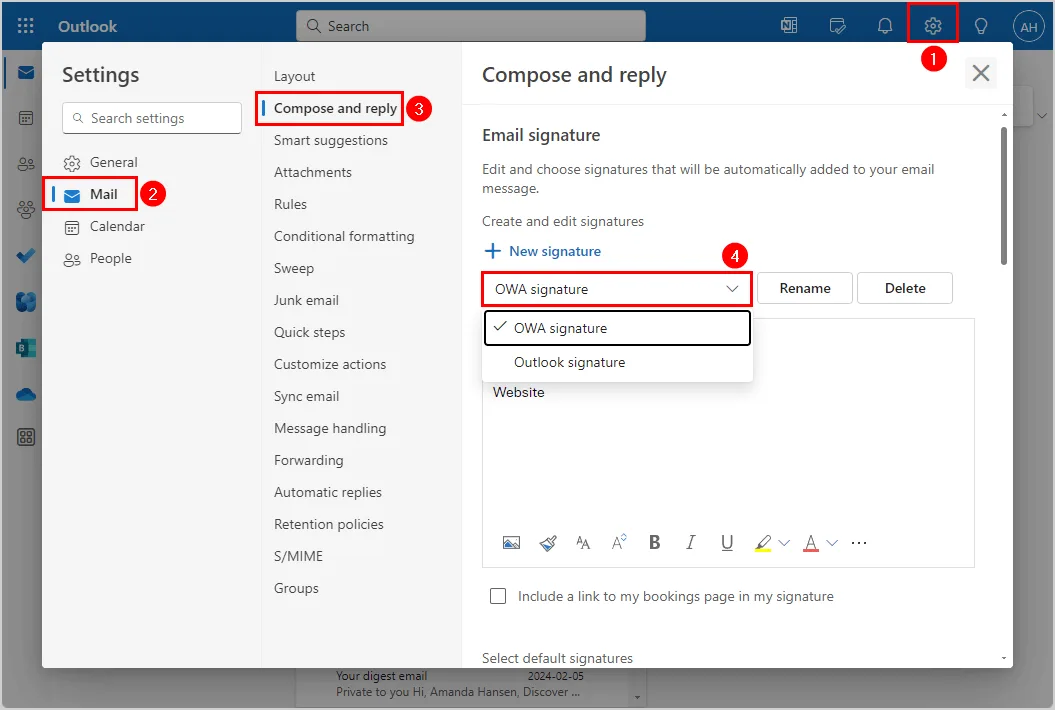
Image source: Bing (Web (fair-use with source credit))
One thing to note: signatures can double up with templates. Outlook adds your default signature to every new message, including ones you build from a template. If your template already has a signature baked in, turn off the default for that compose window.
Otherwise you’ll send two.
Combining the three is fine when it makes sense. Use a signature for the footer, a template for the body, and reserve mail merge for real bulk sends.
What Changes on Shared Mailboxes and Team Accounts
Shared mailboxes don’t carry personal templates. That’s the short answer, and it trips up a lot of helpdesk teams.
Quick Parts and My Templates live with the signed-in user, not the mailbox. If five people share support@yourcompany.com, each one has their own template list. There’s no automatic sharing.
For teams that need consistent replies, the fix is a shared template library. IT admins can deploy organizational templates through Microsoft 365 or push .oft files to everyone’s template folder via Group Policy. That way everyone opens the same content.
If you don’t have admin access, the workaround is simpler. Save your templates as plain text or HTML in OneDrive or SharePoint. Copy and paste the content into a new email.
It’s less elegant but works on any version.
A few other shared-account quirks worth knowing:
- Delegated access doesn’t transfer templates. You get mailbox access, not someone else’s Quick Parts.
- Signatures can be set per mailbox or per account, so check which one is active before sending.
- DLP policies can strip attachments from templates in regulated industries. Test before you rely on it.
For a small team with no IT support, a shared OneNote or Word document full of pre-approved replies is often the fastest route. It’s not fancy, but it removes the blank-page problem.
Can You Automate Templates with Rules or VBA?
Yes, and it’s easier than it sounds for simple cases.
Outlook rules can auto-reply with a template for specific senders or subjects. Go to File > Manage Rules & Alerts > New Rule > “Reply using a specific template.” Pick a .oft file and Outlook uses it for every match.
The catch is that this only works in classic desktop. New Outlook and web don’t support auto-reply templates yet, though Microsoft has been adding rule features gradually.
For more control, VBA scripts can read a .oft file, fill in fields from a spreadsheet, and send automatically. That’s overkill for most people, but sales teams doing personalized outreach at scale use it.
If you go the VBA route, keep a backup of your .oft files. Scripts break when templates move, and you don’t want to rebuild them from scratch.
For everyone else, the simplest automation is an Outlook Quick Step. Quick Steps combine actions like “reply with template” and “mark as read” into a single click. Set one up under the Quick Steps group on the Home tab.
Frequently Asked Questions
How do I create a template in Outlook quickly?
Compose the email you want to reuse. On classic desktop, click File > Save As and pick Outlook Template (*.oft). On web or new Outlook, click Insert > My Templates and save the current message.
Either way, the whole job takes about a minute once your content is written.
Why is My Templates not showing in Outlook?
My Templates requires a Microsoft 365 or Outlook.com account signed in. If you’re on a shared mailbox or a corporate account without the add-in enabled, it won’t appear. Check Insert on the ribbon first, then confirm your account type with your IT admin if it’s still missing.
Can I use the same template on my phone and laptop?
Only if you use My Templates. That method stores templates in the cloud under your account. .oft files stay on one machine unless you copy them manually. Signatures sync across devices through your account on most modern clients.
How do I edit a template I already saved?
For .oft files, open the file through New Items > More Items > Choose Form, edit the content, then save it again with File > Save As using the same name. For My Templates, open the pane, select the template, edit it in the compose window, and save it back.

Similar Posts