How to Automatically Add a Tag in Klaviyo
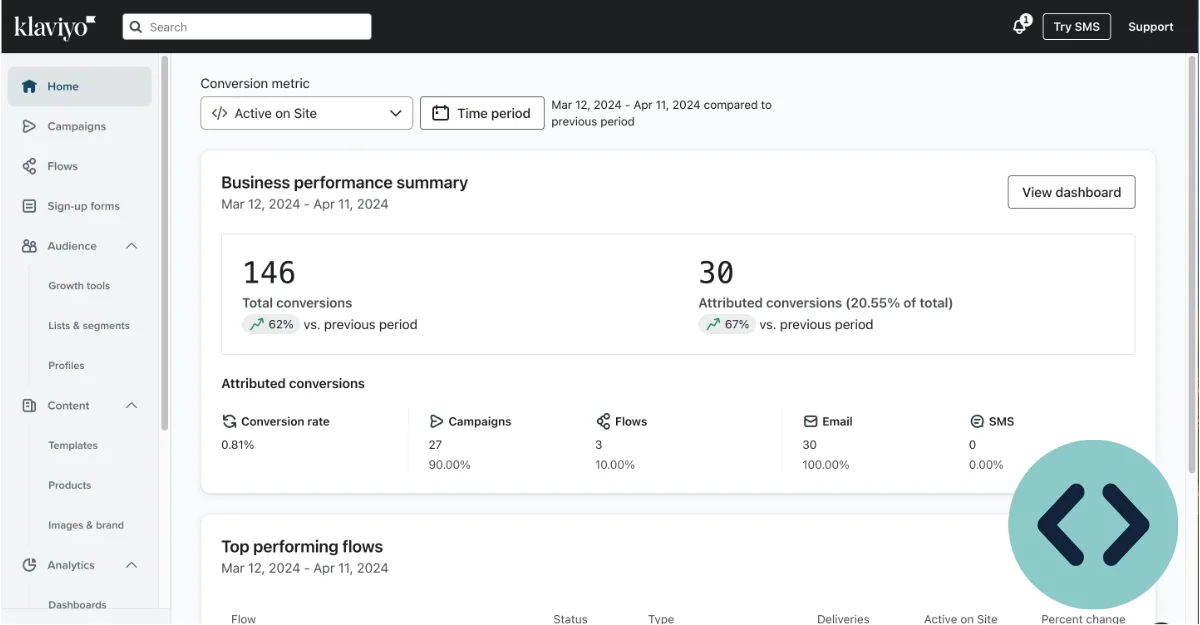
How to Automatically Add a Tag in KlaviyoLearn how to automatically add a tag in Klaviyo without building a segment for every tiny micro-case. You’d think a platform this polished would have an “if this, then tag that” switch. It doesn’t.
Tags in Klaviyo are profile-level labels, and they only get applied through flows, forms, the API, or a third-party tool.
That matters because tags are one of the few lightweight tools that work everywhere in Klaviyo. Flow filters, segment conditions, dynamic blocks, and API calls all read tags. Klaviyo’s own developer docs list a burst rate of 75 requests per second on most profile endpoints, which tells you the platform expects heavy tagging traffic from serious accounts.
Quick Answer
To automatically add a tag in Klaviyo, build a flow with a trigger like a metric, list add, or segment entry. Add the Tag Profile action as a step. Publish the flow.
Tags only apply going forward. For existing profiles, use the Klaviyo API or a bulk backfill.
Why Automatically Adding a Tag in Klaviyo Isn’t as Simple as It Sounds
Klaviyo treats tags as flat labels you attach to a profile. There’s no standalone rules engine that says “if a profile meets X, add tag Y.” That concept doesn’t exist in the UI.
What you get instead is a handful of indirect paths. Each one has its own trigger, its own timing, and its own failure mode.
The confusing part is that Klaviyo’s UI makes tagging look simple. You can create a tag under Settings → Tags in about five seconds. You can manually slap it on any profile from the contact record.
But manual tagging doesn’t scale past a few dozen contacts.
Here’s the trap most people fall into. They assume a tag works like a segment. It doesn’t.
A segment recalculates continuously and pulls contacts in and out based on live conditions. A tag is a static string that stays on a profile until something removes it.
That difference drives every decision you’ll make below. If your rule is dynamic, you probably want a segment. If your rule is a one-time stamp (like “bought the Q4 bundle” or “attended the March webinar”), a tag is the right tool.
And no, tags don’t backfill. Klaviyo applies a tag the moment the flow action fires. Historical profiles that already meet the condition stay untagged unless you push an API call or run a one-time backfill flow.
Image source: Web (Bing) / taggrs.io (Web image (fair-use with source credit))
The Four Ways to Auto-Tag a Klaviyo Profile — Pick Your Trigger Type
This is the decision tree. Match your situation to a path, then jump to the setup steps.
Path A: Tag on a Flow Event (Metric, List, or Segment Trigger)
Use this when a profile does something you can detect. Examples: places an order, joins a list, enters a segment, submits a form.
If the trigger exists as a Klaviyo metric or list event, use Path A. It’s the cleanest method and needs zero code.
Path B: Tag on Form Submit
Use this when the tag comes from a signup source. A quiz, a popup, or an embedded form.
If you’re capturing zero-party data (someone telling you their preference directly), Path B is the right branch. Add a hidden field to the form, then trigger a flow off the form submission.
Path C: Backfill Tags on Existing Profiles
Use this when you need to tag profiles that already exist. Say you just launched a VIP tier and want every past high-spender labeled.
If the segment already exists, Path C is your only native option. Note the catch: the “Added to Segment” trigger only fires for profiles that enter the segment after the flow is published. Anyone already inside stays untouched.
Path D: Tag via API, Zapier, or Make
Use this when your tagging logic lives outside Klaviyo. A custom app, a data warehouse, or an integration Klaviyo doesn’t natively support.
If you’re comfortable with a private API key and a POST request, Path D gives you the most control. It’s also the only way to force real backfills at scale.
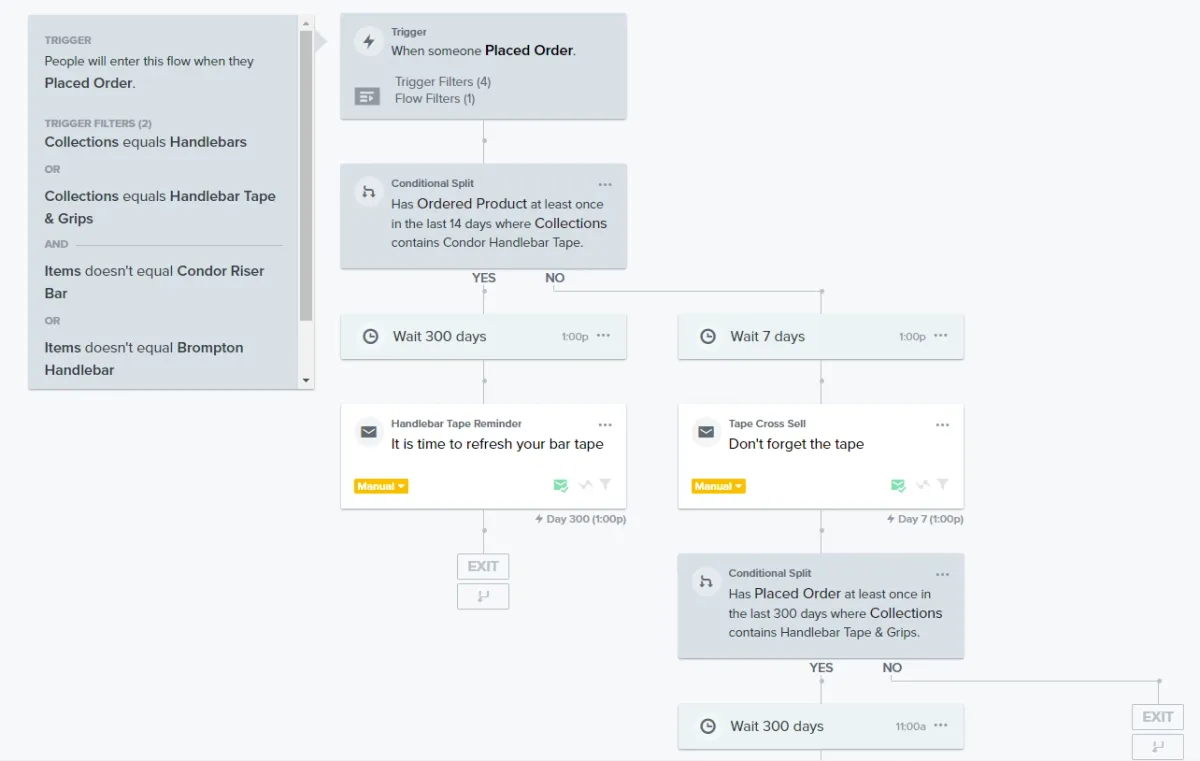
Image source: Web (Bing) / community.klaviyo.com (Web image (fair-use with source credit))
Step-by-Step: Building Your First Auto-Tag Flow in Klaviyo
Here’s the standard flow build. It works for Paths A and B. We’ll use a Shopify purchase trigger as the example.
- Create the tag first. Go to Settings → Tags and add it manually. This prevents typos later.
- Open Flows and click Create Flow → Build from Scratch.
- Pick your trigger. For a purchase, choose the “Placed Order” metric.
- Add a Trigger Filter if you only want specific orders. Example: “Item Name contains Hoodie.”
- Drag the Tag Profile action onto the canvas. Select the tag you created.
- Add a profile filter above the tag if you need finer control. Conditional Splits work here too.
- Publish the flow. Then trigger it once with a test profile to confirm.
A few things worth knowing before you hit publish.
The Tag Profile action only appears in flows. You won’t find it in segments or list settings. That trips up a lot of first-timers.
Trigger Filters and Action Filters do different jobs. Trigger Filters stop the flow from firing at all. Action Filters let the flow run but skip the action for non-matching profiles.
Use Trigger Filters for narrow rules and Action Filters for broader ones you might reuse.
Timing matters too. A tag applied by a flow fires in near real time, usually within seconds. But if you’re tagging off an “Added to Segment” trigger on a large account, expect a small lag.
Klaviyo re-evaluates segments on a rolling basis, and big lists can take a few minutes.
For backfilling existing profiles, the API route needs a private key with profiles:write scope. Klaviyo’s developer documentation covers the endpoint structure and current rate limits. Batch your updates rather than firing one call per profile, or you’ll hit the throttle fast.
Tags vs. Segments vs. Lists vs. Properties: Which One Actually Fits Your Case
This is where most Klaviyo accounts get messy. People reach for the wrong tool, then wonder why their flows don’t behave.
Here’s the honest breakdown.
| Tool | Updates Automatically? | Backfills? | Best For |
|---|---|---|---|
| Tag | No | No | One-time stamps (“bought Q4 bundle”) |
| Segment | Yes | Yes | Live audience rules (“opened in 30 days”) |
| List | No | No | Subscription status (email, SMS source) |
| Property | No | Sometimes | Structured data (tier, region, birthday) |
If your rule changes over time, use a segment. Segments recalculate continuously, so a profile can drop out when it no longer qualifies. Tags can’t do that.
Once a tag is on, it stays until something removes it.
If you need a key-value pair, use a custom property instead of a tag. Properties handle things like tier: gold or region: uk. Tags are flat strings, so vip vs. vip_gold becomes an unmanageable mess at scale.
If subscription status matters, use a list. Tags don’t equal opt-in. Tagging someone “newsletter” doesn’t mean they consented to email.
That distinction has legal weight under GDPR and CAN-SPAM.
The cleanest accounts we’ve seen use a hybrid. Segments for live targeting. Tags for historical stamps.
Properties for structured data. Lists for subscription state.
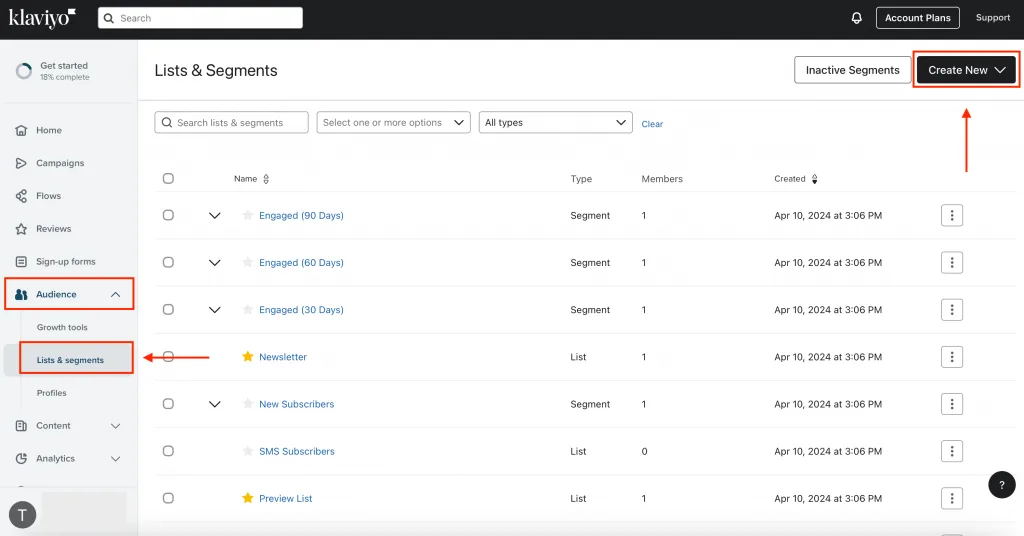
Image source: Web (Bing) / opinew.com (Web image (fair-use with source credit))
Common Mistakes That Break Klaviyo Auto-Tagging (and How to Fix Them)
These are the ones we see over and over. Each has a fix.
Typos create duplicate tags. Klaviyo treats “VIP” and “vip” as two different tags. Always create tags under Settings first, then pick them from the dropdown in your flow action.
Renaming a tag breaks references. If a tag is used in a flow filter and you rename it, the filter silently stops matching. Clone the old tag, migrate the references, then delete the original.
Expecting retroactive tagging. Flows only fire forward. If you need to tag existing profiles, use the API or a one-time backfill flow triggered by a segment entry.
Putting the filter in the wrong place. A Trigger Filter stops the flow entirely. An Action Filter lets the flow run but skips the tag action. Pick based on whether you want the profile to still receive subsequent steps.
Forgetting case sensitivity in API calls. The Klaviyo API expects the exact tag string. “VIP” and “vip” won’t merge. Standardize your naming before you write any code.
Letting tag sprawl happen. Accounts with hundreds of stale tags become unusable. Audit Settings → Tags quarterly. Merge duplicates and delete anything no flow or segment references.
Tag Naming, Compliance, and Long-Term Hygiene
A naming convention isn’t optional once you pass a few dozen tags. Pick a pattern and stick to it. We’d suggest lowercase, colon-delimited, with the category first.
Examples that hold up well over time:
source:quizsource:popupvip:tier1vip:tier2region:ukevent:webinar-2026-03product:bundle-q4
That structure sorts predictably, scans quickly in the UI, and avoids the “VIP” vs. “vip” duplication trap we flagged earlier. Two rules: always create tags under Settings → Tags before referencing them anywhere, and never rename a live tag without migrating every flow and segment that reads it.
Compliance matters here more than most people realize. Under GDPR and UK GDPR, tagging a profile on behavioral data counts as processing personal data. You need a lawful basis for the tag itself, not just for the email you send afterward.
Tagging someone “buyer” or “browser” is usually fine under legitimate interest. Tagging sensitive categories (health, religion, union membership) without explicit consent is a hard no. The ICO publishes guidance on legitimate interest that’s worth reading before you tag anything borderline.
CAN-SPAM and PECR add another layer. A tag is not consent. Tagging someone “newsletter” doesn’t make them a subscriber.
Always gate email and SMS sending on list membership plus a documented opt-in, never on a tag alone.
For API hygiene: rotate your private keys every 90 days, scope them to profiles:write only when needed, and store them in a secrets manager. Klaviyo rate limits on profile endpoints are tight enough that a leaked key can cause real damage fast.
Long-term maintenance: audit Settings → Tags quarterly. Merge duplicates, delete orphans, and check that every tag still maps to a live flow, segment, or integration. Tags that nothing reads are just noise.
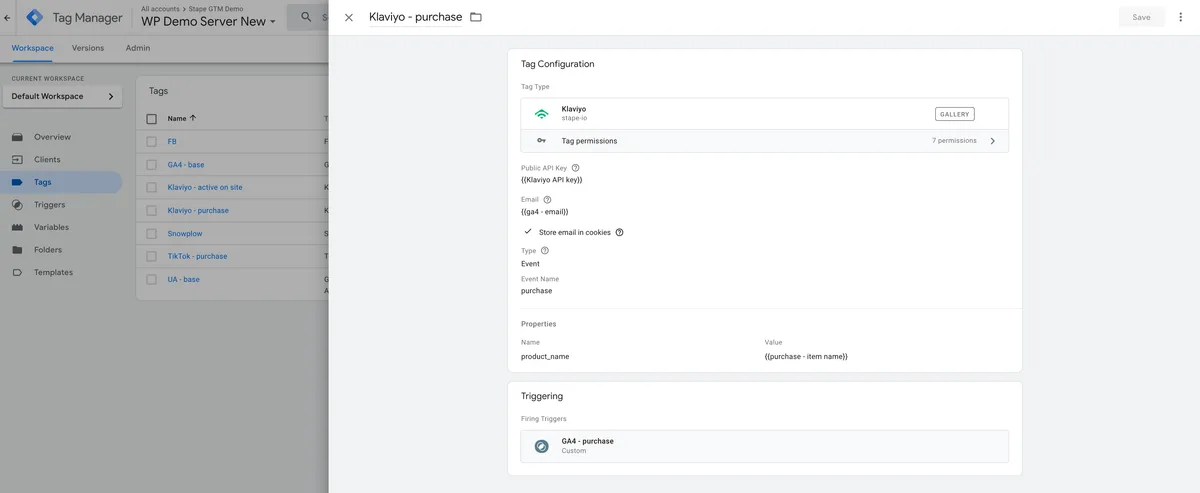
Image source: Bing (Web (fair-use with source credit))
Frequently Asked Questions
Can I automatically add a tag in Klaviyo without building a flow?
No. Klaviyo’s native UI only applies tags through flows, forms, or the API. If you can’t use a flow, the API is your next option.
Why didn’t my tag apply to existing profiles?
Tags don’t backfill. Flows fire going forward only. Use the Klaviyo API with profiles:write scope to push tags onto historical profiles.
Does Klaviyo treat VIP and vip as the same tag?
No. Klaviyo tags are case-sensitive. “VIP” and “vip” are separate tags.
Standardize your naming before you build anything.
What’s the API rate limit for tagging profiles in Klaviyo?
Klaviyo’s developer docs list around 75 requests per second burst for most profile endpoints, with lower steady-state limits. Batch your calls.
Can I use a segment to tag profiles instead of a flow?
Not directly. Segments can trigger a flow, and that flow can tag the profile. The segment itself never writes a tag.
Do Klaviyo tags sync with Shopify customer tags?
No, they’re separate systems. Klaviyo’s Shopify integration syncs orders and profiles, but tags don’t cross over by default.

Similar Posts